Description
Download AntiFreeze – system freeze fix, Windows process killer, quick task manager, Ctrl-Alt-Win-Start shortcut, system performance tool
Overview
AntiFreeze is a lightweight system utility designed for Windows users who frequently experience computer freezes due to resource overload. The app provides a direct, no-frills solution to regain control when a system becomes unresponsive. By offering immediate access to running processes, AntiFreeze enables users to terminate problematic applications without the need for a system restart. This functionality is especially valuable in high-pressure environments such as office work, content creation, or gaming, where unexpected freezes can disrupt productivity or gameplay.
The target audience includes both casual users and professionals who rely on stable system performance. While the developer, Jason K. Menard, is credited with creating the tool, no additional background information is available. The app operates as a standalone utility, requiring no installation or complex configuration. Its core purpose is to serve as a rapid response mechanism during system instability, filling a niche gap in the Windows ecosystem where traditional Task Manager may not be accessible during a freeze.
Real-world use cases include terminating memory-hogging applications during video rendering, stopping unresponsive browser tabs that crash the system, or recovering from software glitches that lock the desktop. Although the developer did not provide additional technical details, the app’s continued availability since its release in 2011 suggests a stable and functional design. As a free tool, AntiFreeze remains a practical option for users seeking an accessible way to manage system performance.
Key Features & Functionality
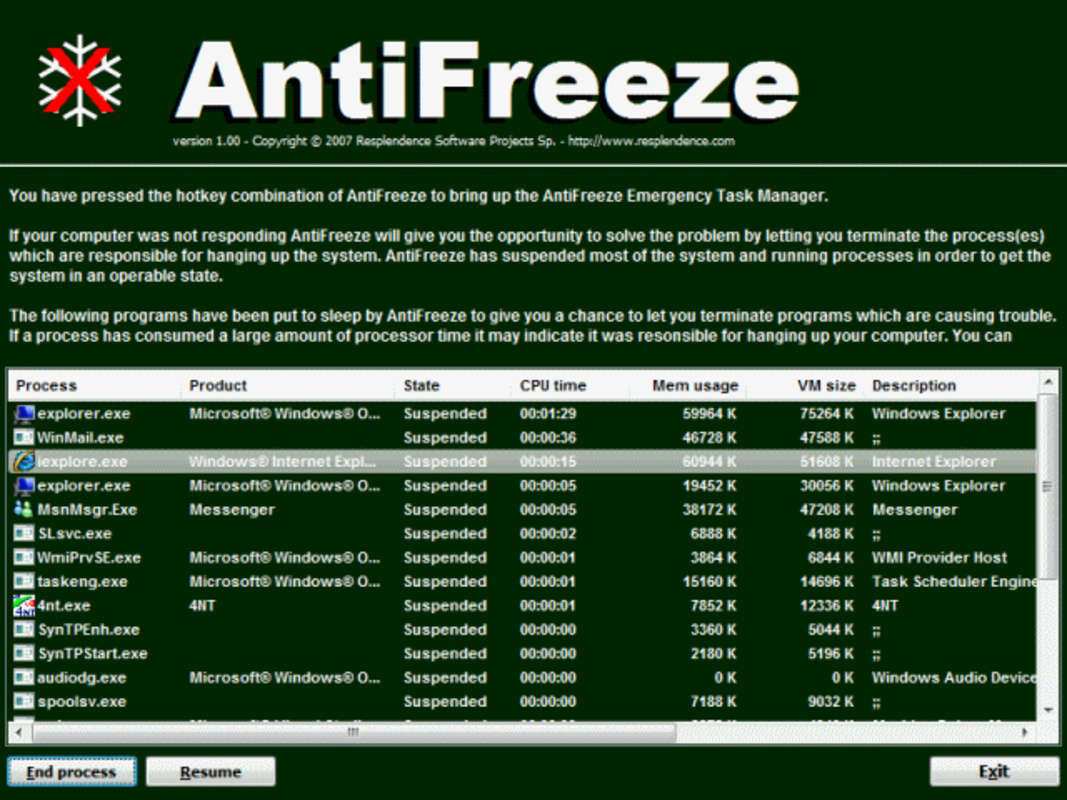
- Instant Problem Resolution: By pressing the Ctrl-Alt-Win-Start key combination, users can instantly access a process management interface, similar to the Windows Task Manager. This allows for immediate termination of applications causing system freezes, restoring functionality without rebooting.
- User-Friendly Interface: The interface is designed to mirror the familiar layout of the Windows Task Manager, making it intuitive for users of all technical levels. Navigating through running processes and selecting those to end is straightforward, minimizing the learning curve.
- Resource Management Aid: AntiFreeze helps users identify and stop programs that are consuming excessive system resources. This proactive approach can prevent further system degradation and maintain smoother performance during demanding tasks.
- No Cost Solution: As a free utility, AntiFreeze provides a cost-effective method for addressing system freezes. It requires no subscription or in-app purchases, making it accessible to users across different economic backgrounds.
For example, a graphic designer experiencing a freeze during a large file export can use the shortcut to quickly end the unresponsive application and resume work. Similarly, a student running multiple browser tabs and a video editor might use AntiFreeze to terminate redundant processes and free up memory. The app’s minimal footprint and direct access make it a reliable tool in moments of system stress.
Interface, UX & Performance
The interface of AntiFreeze is designed with simplicity and speed in mind. It presents a clean, task manager-style layout that users can recognize instantly, reducing cognitive load during high-stress situations. Navigation is limited to basic process selection and termination, which streamlines the user experience and prevents confusion.
Although the developer did not list formal performance metrics, the app’s small file size of 1.5 MB suggests efficient resource usage. It is likely optimized for low overhead, making it suitable for older or less powerful systems. The responsiveness of the interface upon activation via the keyboard shortcut indicates a fast boot-up time, a critical factor when system stability is compromised.
Performance across different device categories is not explicitly documented. However, given its long-standing presence since 2011 and minimal system requirements, it is likely compatible with a wide range of Windows systems. Stability appears to be a key strength, as the app remains functional even during system freezes, which is essential for its intended use. No reports of crashes or conflicts were provided, but users are advised to exercise caution when terminating system processes.
Platform Compatibility & Technical Requirements
AntiFreeze is designed for the Windows operating system. The specific version of Windows is not listed, nor are any minimum OS requirements. The app has a file size of 1.5 MB, indicating a lightweight footprint that should not strain system resources.
Compatibility information was not fully disclosed. The developer did not specify whether the app supports Windows 10, Windows 11, or older versions such as Windows 7 or 8. Similarly, no details were provided about processor architecture (32-bit vs 64-bit) or RAM requirements. Users are advised to test the app in their environment to confirm functionality.
Although the app is free, the developer did not indicate whether updates are regularly released. The current version is 1.0.0.1, which suggests a mature but potentially static release. Users seeking the latest version should verify the official source for updates.
Pros and Cons
Pros
- Free to use with no hidden costs or subscriptions.
- Simple, intuitive interface that mirrors the Windows Task Manager.
- Immediate access to process management via a dedicated keyboard shortcut.
- Lightweight design with minimal system impact (1.5 MB file size).
- Effective for resolving system freezes without requiring a reboot.
Cons
- Specific OS compatibility details were not provided.
- Developer did not list minimum system requirements or supported architectures.
- No information on update frequency or future development plans.
- May pose risks if users terminate critical system processes without proper knowledge.
- Interface lacks advanced features such as process monitoring or performance analytics.
FAQ
Is AntiFreeze safe to use on my Windows PC?
Yes, AntiFreeze is a free utility designed to help users manage unresponsive processes. However, users should exercise caution when terminating processes, especially system-level ones, to avoid unintended system instability.
Can I install AntiFreeze on Windows 10 or Windows 11?
While the developer did not specify compatibility with Windows 10 or 11, the app’s long-standing presence suggests it may function on modern systems. Testing on your device is recommended to confirm functionality.
Do I need to install AntiFreeze, or is it portable?
AntiFreeze appears to be a portable application, as it does not require installation and operates from a single executable file. This allows for easy deployment and removal without leaving traces in the system.
How do I use the Ctrl-Alt-Win-Start shortcut?
Press and hold Ctrl, Alt, and the Windows key simultaneously, then press the Start key. This combination activates the AntiFreeze interface, allowing you to select and terminate running processes.
Is there a mobile version of AntiFreeze?
AntiFreeze is designed exclusively for Windows desktop systems. There is no mobile version available for Android or iOS devices.
Final Thoughts
AntiFreeze stands out as a focused, no-nonsense tool for Windows users facing system freezes. Its ability to provide immediate access to process management via a simple keyboard shortcut makes it a valuable asset in moments of system stress. While it lacks advanced features and detailed technical specifications, its core functionality is reliable and effective.
Users who frequently encounter unresponsive systems—especially those working in demanding environments—will benefit most from this utility. Its free status and lightweight design further enhance its appeal. For anyone seeking a straightforward, secure way to regain control of a frozen computer, AntiFreeze delivers on its promise.
Download AntiFreeze now
Guides & Tutorials for AntiFreeze
How to install AntiFreeze
- Click the Preview / Download button above.
- Once redirected, accept the terms and click Install.
- Wait for the AntiFreeze download to finish on your device.
How to use AntiFreeze
This software is primarily used for its core features described above. Open the app after installation to explore its capabilities.
User Reviews for AntiFreeze 0
No reviews found